How to Track Follow Ups: A Simple Follow Up Tracker in Todoist
Track follow ups in one list. Write each one as an action with the person's name, add a date only when timing matters, mark the ones you are waiting on, and review the list once a week. Todoist handles all of this on its free plan.
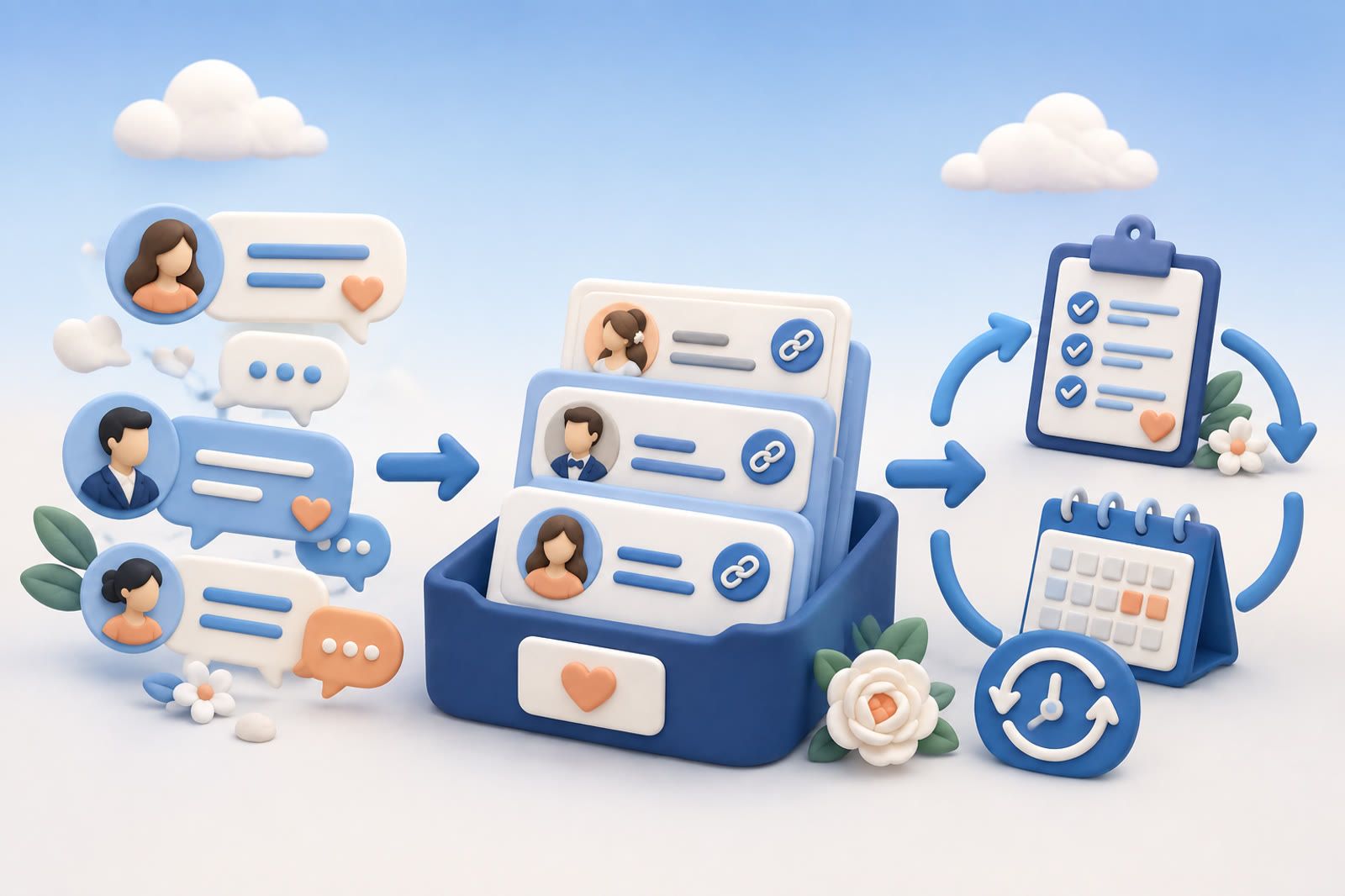
How to track follow ups
Track follow ups in one list. Write each one as an action with the person's name in it, add a date only when timing matters, and review the list at a fixed time every week. A task app such as Todoist handles this well; a spreadsheet works when all your follow ups look alike, such as job applications or sales leads.
Follow ups come in two kinds. Some you owe: send the article, ask about the interview, introduce two people. Others are owed to you: a reply, a document, a decision. Track both. The second kind slips more often, because nothing reminds you that a reply never came.
If most of your follow ups are about people you meet, a personal CRM in Apple Notes keeps conversation details next to each name. For a stack of contacts after an event, see conference follow up with business cards and photos.
What to put in a follow up tracker
A follow up tracker needs six things: the person, the action, the item, a date, a status and where it came from.
| Field | Example | Why it helps |
|---|---|---|
| Person | Priya | You often remember who before you remember what |
| Action | Introduce Priya to Daniel | A verb tells you the next step |
| Item or link | The article URL | Finishing becomes copy and send |
| Date | Before Saturday | Only when the promise had a time |
| Status | Open, waiting, done | Shows who has the next move |
| Source | Coffee with Priya on Tuesday | Helps when the details blur |
In Todoist, the task name holds the action and the person, the description holds the link and the source, the due date holds the date, and a label holds the status. Type % in the task name to add a label. Todoist's labels guide says @ still works for now but is planned to be retired by the end of 2026, and labels are available on the free Beginner plan.
Create one Follow-ups project
Use a single Follow-ups project for personal and work promises unless separating them solves a real problem. Typical tasks include:
- Send Mom the sleep article
- Introduce Priya to Daniel
- Ask Jamie how the interview went
- Forward the contractor details to Alex
- Send Carla the lemon chicken recipe
These commitments are too small for a calendar and easy to lose once a conversation moves on. A dedicated project makes them visible without mixing them into errands and major work deadlines.
Write each task as a physical action
Carla recipe forces you to reconstruct the promise later. Write Send Carla the lemon chicken recipe instead.
Always include the person's name and the thing promised. When several steps are involved, write the next physical action:
- Find the pediatric dentist link for Jen
- After finding it, change the task to Send Jen the pediatric dentist link
This keeps the task actionable and makes person-based search useful.
Attach the thing you promised
Put an existing article, recipe or product link in the description or a comment. Completion then becomes one open-copy-send sequence. The task remembers the promise; the attachment remembers the item.
If you do not have the link, capture the best identifying detail available: Sleep article from last week, discussed blue light and shift workers. Do not interrupt a conversation to perfect the citation. Names and concrete details also help when trying to remember something important a friend mentioned.
Use due dates only when they are real
Artificial deadlines create noise and teach you to ignore overdue tasks. Date a follow-up when timing changes its value:
- Send the venue link before Saturday
- Ask about the interview on Friday afternoon
- Forward the document before the meeting
- Check whether the package arrived tomorrow
If you said “tonight,” add tonight. If you said “sometime,” leave it undated and let the review surface it.
Add a small set of labels only if needed
A single project may be enough. If volume grows, use a few action-oriented labels:
- send for links, files and recommendations
- ask for questions and check-ins
- introduce for connecting people
- waiting when someone else must respond
After sending a draft, change Send Sam the draft to Waiting for Sam's feedback instead of closing the thread. Labels should help you act, not describe every dimension of the promise.
Capture at the natural break
The person, item and reason are clearest when the promise is made. If using your phone during the conversation feels rude, capture the task at the next natural break: when you reach your desk, get into the car or wait for coffee. Add a short title first and the link later.
This also works when you must find a restaurant someone mentioned. Record the person and memorable detail before beginning the search. Do not rely on the mental reminder that returns while you cannot act.
Track follow ups you are waiting on
When you send something that needs a reply, add a task right away, such as Waiting for Sam's feedback on the draft, give it the waiting label and the day you plan to check in. If the reply arrives, complete the task. If it does not, the task comes up on that day and you send one short nudge.
To see every open thread at once, create a filter view with the query %waiting. Todoist's free Beginner plan includes 3 filter views and Pro includes 150, according to its pricing page. Filters are set up under Filters & Labels, as the filters guide shows.
Email follow ups can go straight from the inbox into Todoist. For Gmail there is the Todoist Chrome extension or a Google Workspace add-on, and the task keeps a link to the email, which opens in Gmail in a web browser (Todoist's Gmail guide). For Outlook.com, Office 365 and other supported Microsoft accounts there is an Outlook add-in.
Then add one recurring task for the review, such as Review follow-ups every Friday. Todoist reads "every Friday" in the task name as a recurring date and moves the task to the next Friday when you complete it, per its recurring dates guide.
Separate tasks from saved ideas
An article you might read is reference material. An article you promised to send is a task. Keep the visible action in Todoist and the source wherever you save articles, notes and recommendations; attach its link when possible.
If sources regularly disappear across several apps, send them to dEssence from Chrome, Telegram or the web app. Tracy keeps each one with its context, so finding the article you promised Anna is a question in your own words. Todoist should still contain the commitment to act. This prevents Follow-ups from becoming a dumping ground and distinguishes a gift idea worth remembering from the concrete promise to buy or send it.
Search by person when memory is incomplete
If you remember owing Anna something but not what, search for Anna. This only works when names consistently appear in task titles. Partial subjects such as recipe, dentist or newsletter can also recover a task.
Use the ordinary language of the original conversation. You are leaving clues for your future self, not building a perfect archive. It is part of making something you learned retrievable later.
Send late follow-ups instead of deleting them
A late personal follow-up is often still worth doing. A plain acknowledgment is enough: I meant to send this earlier. This is the article we discussed. Then include the link.
If the promise has genuinely expired, close or delete it during review. Todoist should support relationships and work, not preserve guilt indefinitely.
Follow up tracker: spreadsheet or task app?
Use a spreadsheet when your follow ups share the same columns and you want to compare them, such as 40 job applications or a list of sales leads. Use a task app when follow ups are small and mixed, and you need a nudge on the right day.
| Spreadsheet (Excel, Google Sheets) | Task app (Todoist) | |
|---|---|---|
| Best for | Many similar follow ups with the same fields | Mixed promises from conversations and email |
| Reminders | You see dates when you open the sheet | Todoist can add a reminder automatically when a task has a date and time |
| Adding on the go | Slow on a phone | Quick Add on a phone or computer |
| Overview | Sort and filter by any column | Projects, labels and filter views |
You can also combine them: keep the pipeline in the sheet, and put only the next follow up for each row into Todoist as a dated task. Todoist's reminders guide explains the automatic reminder and how to change its timing.
FAQ
What is the best way to track follow ups?
Keep one list, write every follow up as an action with a person's name, date it only when timing is real, and review it weekly. Track what others owe you as well as what you owe.
What should a follow up tracker include?
The person, the action, the item or link, a date if timing matters, a status such as open, waiting or done, and where the follow up came from.
How do I track follow ups in Todoist?
Create one Follow-ups project, add a task per promise with the person's name, put the link in the description, use labels such as waiting, and add a recurring weekly review task.
Is there a free follow up tracker?
Yes. Todoist's free Beginner plan includes labels, task reminders and 3 filter views, which is enough for a Follow-ups project. A Google Sheet with columns for person, action, date and status also works as a free template.
How do I keep track of follow up emails?
Turn the email into a task when you send or receive it, using Todoist's Gmail integration or Outlook add-in, label it waiting and give it the day you will check for a reply.