Figma Moodboard: How to Build One and Keep Your Inspiration Organized
To make a Figma moodboard, open the free mood board template in FigJam or a new frame in Figma Design, drag in 10 to 15 strong references, group them by type, colour and layout, and add a short note on why each one is there.
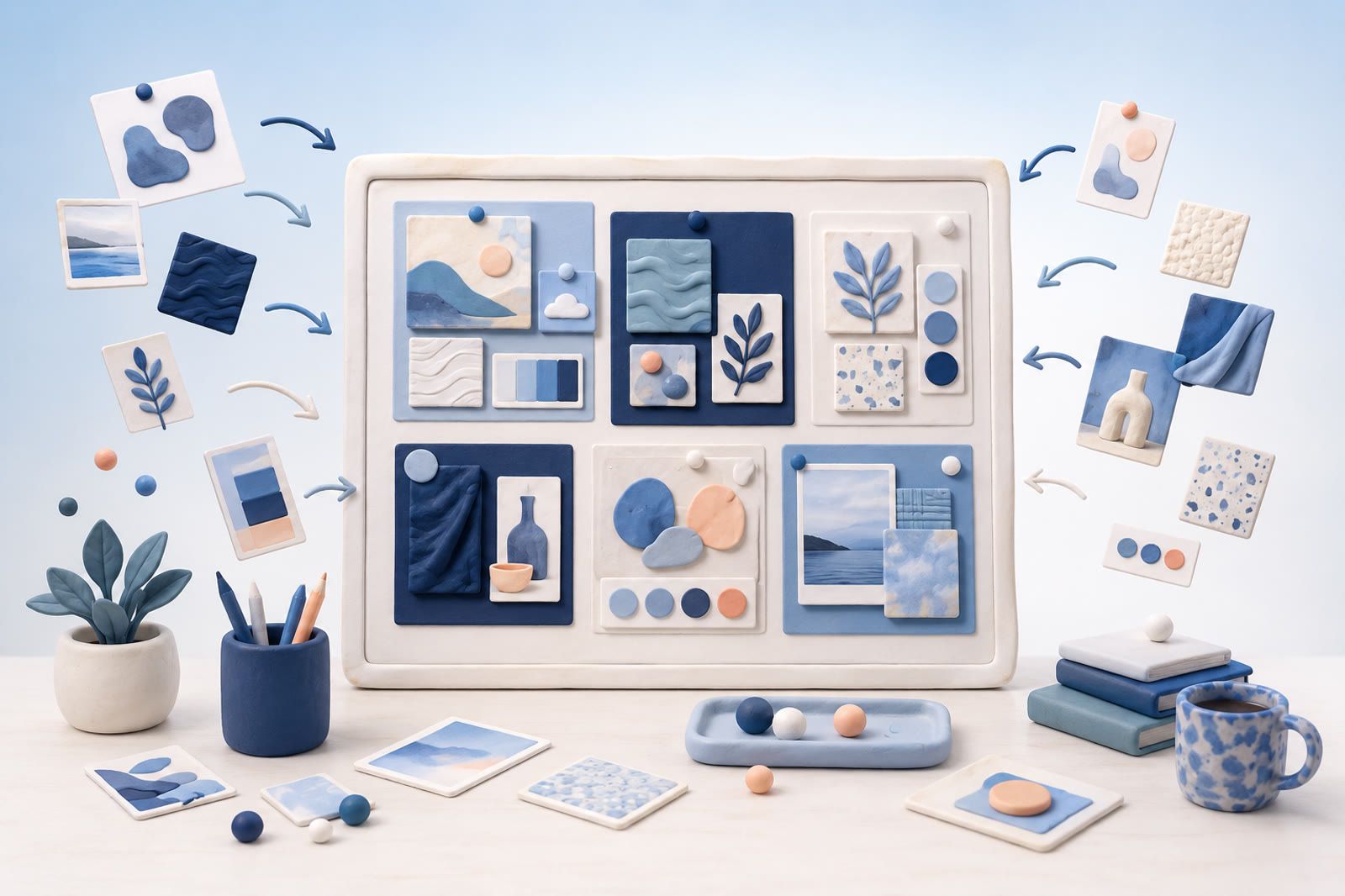
How to make a moodboard in Figma
Start in FigJam if the board is for sharing and feedback, and in Figma Design if you want a tidy frame you can present or reuse in a design file. Both accept images you drag in or paste from the clipboard.
A simple routine that works in either:
- Write three or four words for the direction first, such as calm, warm, editorial. Figma's own guide to making a mood board starts the same way.
- Drag references onto the canvas or paste them. In Figma Design, Place image/video (Shift Command K on a Mac, Shift Ctrl K on Windows) imports several images at once and lets you click where each one goes, as described in Figma's help on adding images.
- Group the images. In FigJam, press Shift S or drag a section over a set of images to make a labeled group that moves together, per Figma's help on sections. In Figma Design, use one frame per cluster.
- Put the strongest image in the middle and place supporting type, colour and texture references around it.
- Add one sticky note or caption per cluster that says what to take from it.
- Share it with Share, then Copy link. If a frame is selected when you copy, the link opens on that frame.
Keep it small. Figma suggests 10 to 15 high impact images per board, because a bigger board loses the specific look you are trying to show.
Example. A moodboard for a coffee packaging refresh could have three clusters: paper and foil textures, condensed serif type and two tone illustration. Each cluster gets four or five images, one larger anchor image and a one line note such as "matte stock, no gloss".
Figma moodboard templates
The quickest start is FigJam's free mood board template, which gives you a ready canvas for images, a colour palette and notes. For a presentation, Figma also lists a free mood board maker built by designers at Mixpanel. It is a Figma file with a set of mood board layouts and matching slides, plus a Google Sheets layout that fills a board from a spreadsheet through a plugin.
Community templates work the same way. Search the Figma Community for "moodboard", open the file and click Open in Figma or Open in FigJam. Figma adds a copy to your drafts, according to Figma's help on Community files. That copy is a new file: later changes by the author do not reach it, so duplicate again if you want an updated version.
Pick a template by its layout, not its sample images. A grid with fixed image slots keeps a board tidy. A loose canvas suits early exploration.
Figma moodboard plugins
Plugins save time on layout and colour, and the useful ones do one job each. These are live in the Figma Community as of October 2026:
- Moodboard 3000 lays out selected images as Grid, Editorial, Masonry or Cluster compositions inside a frame. Its listing says it handles up to 40 images.
- Image Palette pulls a palette of five colours from the images you select.
- Unsplash inserts photos from Unsplash by search or at random, in Figma Design, FigJam and Figma Slides.
- Pinterest Importer brings pins from a Pinterest board into Figma or FigJam and can keep the board's sections. Its listing explains that imports use credits, one per pin.
Plugins are made by third parties, so check each listing for what you need to select before running it. On the free Starter plan, Figma's plugin help shows plugins running in Figma Design and FigJam files.
Create one Figma file for inspiration
Use one predictable home instead of a new inspiration file for every project. Begin with two pages:
- Inbox: every new reference lands here before you decide how to use it.
- Projects: active and finished moodboards live here.
Add an Archive page only after Projects becomes crowded. Too many destinations slow capture and push references back into browser tabs and screenshots.
At the top of Inbox, add a blank frame named for the current month or a broad subject such as Packaging, Editorial or Product UI. The frame creates a visible boundary without demanding precise classification.
Bring every source through one capture routine
Pinterest may hold searches, Instagram may hold studio work, your camera roll may contain app or shop screenshots, and browser tabs may contain portfolios you have not reviewed.
Use the same routine for all of them:
- Save or copy the reference while it is visible.
- Place the image in the Inbox frame.
- Add the source link when the original page matters.
- Write one short label explaining why you saved it.
Useful labels identify the visual quality: condensed type with wide margins, muted food packaging or dense black navigation. Labels such as “nice,” “idea” and “inspiration” will not help later.
If you cannot add something immediately, use one temporary location, such as a screenshot album or one bookmark folder, and empty it into Figma during review. Several temporary locations recreate the original problem.
Make every reference easy to scan
A board becomes difficult when images use unrelated sizes and one reference dominates by accident.
Choose a small set of shapes: portrait frames for posters, squares for packaging and wider frames for websites. Crop copies for consistency, but keep the original nearby if the full composition matters.
Arrange references in rows with even spacing. Figma’s alignment and spacing controls can tidy a rough group after several images are pasted. Perfect measurements are unnecessary; the goal is to expose meaningful differences without adding noise.
Keep notes and source links secondary beneath each image. The references should remain the first thing you notice.
Group by visual idea, not source
Do not separate Pinterest, Instagram and screenshots. Those categories describe origin, not use.
Start with broad visual groups:
- Typography
- Colour
- Composition
- Photography
- Materials
- Illustration
- Interaction
Within projects, use specific clusters such as quiet editorial type, warm metallic finishes or high-contrast product photography.
A reference may appear in more than one group. Duplicate it when it supports two directions. A moodboard is a thinking surface, not a filing cabinet.
Keep the library from becoming another pile
The Inbox can be messy, but it should not become permanent storage. When it becomes slow to scan:
- Copy useful references into active projects.
- Keep strong general references in a broad visual group.
- Remove duplicates and images that no longer communicate anything useful.
Clean the part you are already using instead of inspecting every old image on a rigid schedule. Close browser tabs after capturing the reference and source link. Remove transferred screenshots from the temporary album when you no longer need them there. The Figma file becomes trustworthy only when backup piles stop multiplying.
Use recall support when Figma search is not enough
Figma is excellent for comparing and arranging visual material. It is less useful when you half remember a reference but not its project frame.
dEssence can accept references through the Chrome extension, Telegram bot or web app at dessence.ai and help retrieve them later by theme. It can serve as a recall layer while Figma remains the place for selecting and arranging images.
Alternatively, keep a plain source index in Figma. Add short, concrete labels and use consistent terms based on visual qualities rather than project names.
Build a moodboard that helps you decide
A useful moodboard is not the largest collection. It is a focused set of references that makes a direction visible.
Before presenting or starting production, ask what each item contributes. If two images communicate the same typography, palette or composition, keep the clearer one. If an image is appealing but irrelevant, return it to the library.
The final project frame should help you choose type, colour, imagery and layout. The larger inspiration library can remain broad; the project moodboard should be selective.
Questions people ask next
Is there a free moodboard template in Figma?
Yes. FigJam has a free mood board template, Figma lists a free mood board maker by Mixpanel, and the Figma Community has many more you can duplicate into your drafts.
Should I use FigJam or Figma Design for a moodboard?
FigJam for collecting and discussing with others, because sections and sticky notes make grouping fast. Figma Design when the board needs precise layout or will sit next to the actual design work.
How many images should a Figma moodboard have?
Around 10 to 15 strong images per board, which is what Figma recommends. Keep the rest in your wider inspiration file.
Do I need a page for every category?
No. Start with Inbox and Projects; use frames and visual clusters before adding pages.
Should every image have one perfect location?
No. Duplicate a reference when it genuinely supports more than one direction.
When should I clean the Inbox?
When it becomes slow to scan, preferably while working on material you already need.